
Secrets and what never goes in git
A repository secret is an encrypted value stored in a repository's settings that a workflow reads at run time as ${{ secrets.NAME }}, so a token or a password reaches the job without ever being written into a file that git tracks.
Last updated: 19 Oct, 2026 · MLOps
The pipeline built in Building the image in CI and Deploying with a self-hosted runner logs in to a registry and talks to a server. Both need a credential, and the workflow file that uses them is in the repository where anyone with access can read it. This lesson is about where those values live instead, and what to do on the day one of them was committed by mistake.
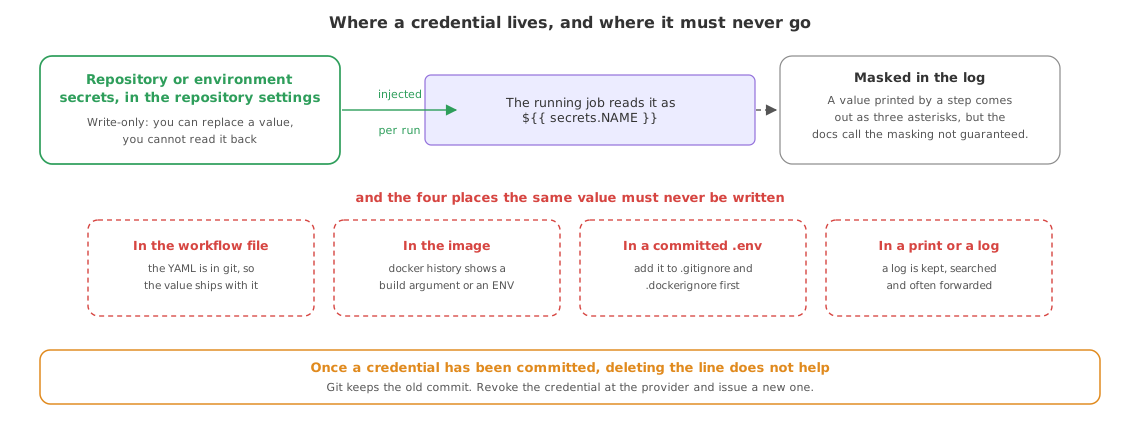
Storing a value and reading it in a step
A secret is added in the repository's Settings page, under Secrets and variables and then Actions. Once saved it cannot be read back through the interface, only replaced or deleted. A workflow reaches it through the secrets context, passed to an action as an input or to a command as an environment variable.
      - name: Log in to Docker Hub
        uses: docker/login-action@v4
        with:
          password: ${{ secrets.DOCKERHUB_TOKEN }}   # as an action input

      - name: Call the deployed service
        env:
          API_TOKEN: ${{ secrets.SERVICE_TOKEN }}    # as an environment variable
run: ./scripts/smoke_test.sh- Nothing is passed by default. A step sees a secret only because the workflow named it, which is why a long workflow can be read to find out exactly which steps touch which credential.
- A name is not a secret. A registry username, an AWS region, a repository name: these go in repository variables, read as
${{ vars.NAME }}, which keeps the secrets list short enough to audit. - The rules on names. A secret name cannot start with
GITHUB_or with a number, and it is stored in upper case however it was typed. One secret holds up to 48 KB, and a repository holds up to 100 of them.
Repository secrets against environment secrets
A repository secret is available to every workflow in the repository. An environment secret belongs to a named environment, such as production, and a job reaches it only when the job declares that environment, which is also where a required reviewer or a wait timer can be attached.
  deploy:
    runs-on: self-hosted
    environment: production      # the job now sees production's secrets
    steps:
- run: echo "deploying"| Repository secret | Environment secret | |
|---|---|---|
| Who can read it | Any workflow in the repository | A job that declares that environment |
| Typical use | A registry token used by every build | The production credential |
| Approval before use | No | Optional: required reviewers on the environment |
| How many | Up to 100 per repository | Up to 100 per environment |
Keeping the value out of the repository and out of the image
A credential on a developer machine lives in a .env file, and two ignore files keep it from travelling. .gitignore keeps it out of commits; .dockerignore keeps it out of the build context, so a COPY . . line cannot bake it into a layer. Write both before the first commit, because an ignore rule added later does nothing about a file already tracked.
.env
.venv/
artifacts/
mlruns/
__pycache__/.env
.git/
.venv/
logs/
__pycache__/An image is the other place a credential hides. A value passed as a build argument or set with ENV stays in the image metadata, which docker history prints for anyone who pulls it, so a container takes its credentials at run time through -e or an environment file instead.
What to do when a key has been committed
Removing the line and committing again does not help. Git keeps every commit, so the value is still in the history of every clone, every fork and every build cache that pulled it. Treat the credential as public from the moment it was pushed and work in this order.
- Revoke it at the provider first. Delete the token or the access key in the registry, the cloud console or the service that issued it. A revoked credential in a public commit is a dead string.
- Issue a new one and store it as a secret, then update the workflow to read it from
secrets. - Then clean the repository: remove the file, add it to
.gitignoreand.dockerignore, and rebuild and republish any image that carried it. - Check what the credential touched while it was exposed: the provider's own activity log is the place to see whether anyone else used it.
Replacing long-lived cloud keys with a short-lived one
An AWS access key stored as a secret works, and it is a key that stays valid until someone revokes it. The aws-actions/configure-aws-credentials action recommends OpenID Connect instead: the job asks GitHub for a signed identity token, AWS trades it for credentials that expire, and no long-lived key is stored anywhere. The job has to be allowed to request that token, which is what the permissions block does.
permissions:
  id-token: write                  # lets the job request GitHub's identity token

jobs:
  push-image:
    runs-on: ubuntu-latest
    steps:
      - uses: aws-actions/configure-aws-credentials@v6
        with:
          role-to-assume: <THE ROLE ARN YOU CREATED IN AWS>
          aws-region: <YOUR REGION>
Where a value is allowed to live
| Value | Where it belongs | Why not in the repository |
|---|---|---|
| A registry access token | A repository secret | The workflow file is readable by everyone with access |
| A production database password | An environment secret | Only the production job should ever see it |
| A cloud access key | Better still, no key: OIDC and a role | A stored key stays valid until revoked |
| A registry username, a region | A repository variable | It is configuration, not a credential |
| A local development key | A .env file, ignored by git and Docker | A tracked file travels into every clone and image |
Related
- Previous: Deploying with a self-hosted runner
- Next: Why a live model decays
- The job that uses these values: Building the image in CI
- Reference: Secrets reference and Security hardening for GitHub Actions
- Store a harmless value, never a real credential, as a repository secret, echo it in a step, and look at what the log prints in its place.
- Move one credential from a repository secret to an environment secret and watch a job without
environment:stop seeing it. - Open your
.dockerignoreand check that every file holding a credential is listed in it.
Slow is fine. Stopping is the only problem.