
Deploying with a self-hosted runner
A self-hosted runner is a machine you own and manage that runs the GitHub Actions runner application, so a job of your workflow runs on your own server instead of on a machine GitHub provides and then discards.
Last updated: 19 Oct, 2026 · MLOps
After Building the image in CI the new image is in the registry, and the server is still running the old one. Something has to pull the new tag and restart the container, and a GitHub-hosted runner cannot: it is a machine somewhere else, with no way into your network. Running the deploy job on the server itself solves that, and this is the pattern the deployment videos use for an EC2 instance.
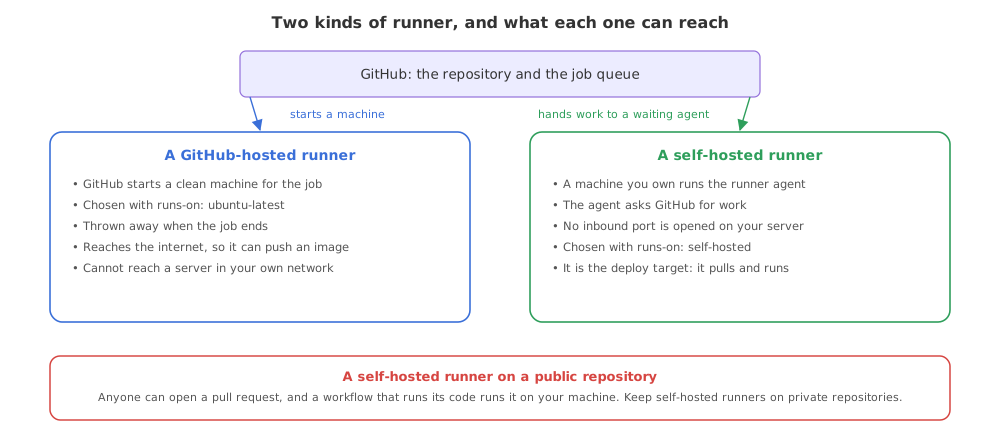
How the runner reaches GitHub
- The agent asks for work. The runner application on your server opens the connection to GitHub and waits for a job, so no port has to be opened on the server for GitHub to reach in.
- The machine is yours. You choose the hardware, the operating system and what is installed, and you keep all of it updated. For this pipeline it needs Docker, and the runner's user has to be allowed to use it.
- Nothing is cleaned up for you. A self-hosted runner does not start from a clean image for every job, so files, images and containers from the last run are still there. That is what makes it a deploy target, and also what makes an untrusted job on it dangerous.
The clip registers an EC2 machine against the deep-learning project's repository; here you register whichever server runs the student-performance container, and the Runners page, config.sh and run.sh are the same three steps.
Registering the runner on your server
The repository's Settings page, under Actions and then Runners, generates the exact commands for the operating system and architecture you pick, including the download URL and a registration token that expires after an hour. The shape is always the same four steps, described in Adding self-hosted runners.
# on the server, as the user the runner will run as
mkdir actions-runner && cd actions-runner

# the exact download URL and token come from the repository's
# Settings > Actions > Runners > New self-hosted runner page
curl -o actions-runner-linux-x64.tar.gz -L <URL FROM THAT PAGE>
tar xzf ./actions-runner-linux-x64.tar.gz

# the token is generated for you and expires after one hour
./config.sh --url https://github.com/OWNER/REPO --token <REGISTRATION TOKEN>
config.sh asks for a runner group, a name and labels. The name is how the runner appears in the Runners list; the labels are how a job asks for it. Then the application has to keep running, which is what installing it as a service does, so it survives a reboot and a closed terminal.
# run it once in the foreground to watch it connect, then stop it
./run.sh

# or install it as a service so it starts with the machine
sudo ./svc.sh install
sudo ./svc.sh start
A connected runner shows as Idle in the repository's Runners list. Idle means the agent is connected and waiting; a job that asks for it starts within seconds of the push.
Pointing the deploy job at your server
runs-on: self-hosted sends the job to a runner carrying the self-hosted label, which every self-hosted runner has. needs keeps it behind the build, so the image it pulls is the one this run pushed.
  deploy:
    needs: build-and-push
    runs-on: self-hosted
Replacing the running container
The steps are the commands you would type on the server, in the order you would type them: pull the new image, remove the old container, start a new one from the new image, and check that it answers.
      - name: Pull the image this run built
        run: docker pull ${{ vars.DOCKERHUB_USERNAME }}/student-performance:latest

      - name: Replace the running container
        run: |
          docker rm -f student-performance || true
          docker run -d --name student-performance -p 8000:8000 \
            ${{ vars.DOCKERHUB_USERNAME }}/student-performance:latest
docker rm -fstops and removes the old container in one command, and|| truekeeps the step from failing on the first deploy, when there is nothing to remove.- The port mapping is repeated on every deploy, because a container keeps no settings from the one it replaced.
- A health check as the next step turns a container that starts and dies into a failed job.
curl -fsSreturns a non-zero exit code on an error response, and a non-zero exit code fails the step.
The deploy job in one piece
  deploy:
    needs: build-and-push            # the image must exist before it is pulled
    runs-on: self-hosted             # this job runs on your own server
    steps:
      - name: Pull the image this run built
        run: docker pull ${{ vars.DOCKERHUB_USERNAME }}/student-performance:latest

      # the old container still holds port 8000, so it goes before the new one starts
      - name: Replace the running container
        run: |
          docker rm -f student-performance || true
          docker run -d --name student-performance -p 8000:8000 \
            ${{ vars.DOCKERHUB_USERNAME }}/student-performance:latest

      - name: Check the service answers
        run: curl -fsS http://localhost:8000/health

      - name: Remove the images the new one replaced
        run: docker image prune -f
A hosted runner against a self-hosted one
| GitHub-hosted | Self-hosted | |
|---|---|---|
| Who provides the machine | GitHub | You |
| State between jobs | None, the machine is new | Everything the last job left |
| Reaching your private server | No | It is the server |
| What it costs | Included minutes, then per minute | The machine, and keeping it patched |
| Chosen with | runs-on: ubuntu-latest | runs-on: self-hosted |
Related
- Previous: Building the image in CI
- Next: Secrets and what never goes in git
- What the server pulls: Pushing to a container registry
- Reference: Self-hosted runners, GitHub Actions docs
- Stop the runner application on the server, push a commit, and watch the deploy job sit in the queue.
- Add a label of your own in
config.shand changeruns-onto[self-hosted, that-label]. - Break the health check by mapping the wrong port and read which step turns the run red.
You understood something today that you didn't yesterday.