
GitHub authentication
Authentication is how GitHub decides that the computer pushing a commit is allowed to. It accepts a personal access token or an SSH key, and it stopped accepting account passwords in 2021.
Last updated: 12 Oct, 2026 · git 2.54
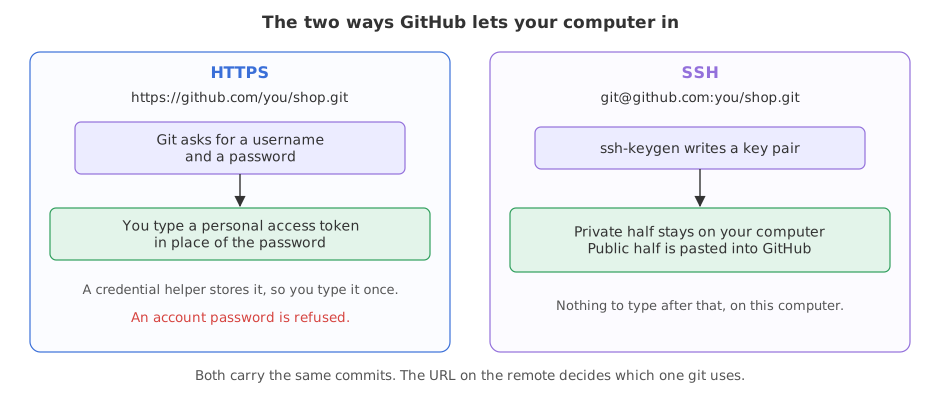
Git remotes gave a URL a name. Nothing has crossed that line yet. The first push is where GitHub asks who you are, and the answer depends on which of the two URL forms the remote holds.
GitHub announced the change in advance: “Beginning August 13, 2021, we will no longer accept account passwords when authenticating Git operations on GitHub.com” (Token authentication requirements for Git operations). The current docs put it in one line: “Password-based authentication for Git has been removed in favor of more secure authentication methods” (About remote repositories). Older tutorials that type an account password at the prompt describe something that no longer works.
Syntax: the two remote URL forms, and the command that switches between them.
https://github.com/you/ask-docs.git    # HTTPS: git asks for a username and a password
git@github.com:you/ask-docs.git        # SSH: git uses a key file, and asks for nothing

git remote set-url origin <URL>        # move a remote from one form to the other
Pushing over HTTPS with a personal access token
With an HTTPS URL, git asks for a username and a password. The username is your GitHub username. In place of the password you paste a personal access token, which the docs say in as many words: “When Git prompts you for your password, enter your personal access token”.
A token is made in your account settings, not in the terminal. GitHub documents the path as your profile picture, then Settings, then Developer settings in the sidebar, then Fine-grained tokens under Personal access tokens, then Generate new token. There are two kinds, and GitHub recommends the newer one: “GitHub recommends that you use fine-grained personal access tokens instead of personal access tokens (classic) whenever possible” (Managing your personal access tokens).
- Give it an expiry. The docs recommend one, and a token that expires is a token that cannot be used for ever by whoever finds it.
- Give it the smallest permissions that work. A fine-grained token is granted specific permissions on repositories you pick. For a classic token, the docs say to select the
reposcope for command-line repository access, and that a token with no scopes can only read public information. - Copy it when it is shown. It is a password in the shape of a string of characters, and it is treated like one.
Moving a remote between the HTTPS and SSH forms
The URL on the remote is what decides which path git takes. Changing it is one command and touches no commits.
git init -q -b main ask-docs && cd ask-docs
git remote add origin https://github.com/you/ask-docs.git
git remote -v
echo "--- the same repository, reached over SSH"
git remote set-url origin git@github.com:you/ask-docs.git
git remote -vorigin https://github.com/you/ask-docs.git (fetch) origin https://github.com/you/ask-docs.git (push) --- the same repository, reached over SSH origin git@github.com:you/ask-docs.git (fetch) origin git@github.com:you/ask-docs.git (push)
Both URLs name the same repository on GitHub. The first makes git ask for a username and a token, the second makes it use a key file. No commit and no file is touched, which is why switching later costs nothing.
Letting a credential helper remember the token
Typing a token on every push is what makes people give up and go back to passwords, which no longer work. A credential helper stores it once. GitHub's docs name Git Credential Manager, which stores the token in the macOS keychain or the Windows credential manager, and say that on macOS it configures git for you. The GitHub CLI does the same: run gh auth login, choose HTTPS, and answer Y when it offers to authenticate git with your GitHub credentials.
git config --global --get credential.helper || echo "(none configured yet)"
git config --global credential.helper "cache --timeout=3600"   # keep it in memory for an hour
git config --global --get credential.helper(none configured yet) cache --timeout=3600
- A fresh machine has no helper. The first line printed the fallback, because
git config --getexits with an error when the key is not set. - The value is the name of a program.
cachekeeps the token in memory for the number of seconds in--timeoutand forgets it after that. On macOS useosxkeychainor install Git Credential Manager; on Windows usemanager. - It is a global setting.
--globalwrites to your home folder, so every repository on the machine uses it.
Connecting over SSH with a key pair
SSH replaces the typed secret with a pair of files. The private half stays on your machine and is never sent anywhere. The public half is pasted into GitHub, which then recognises anything signed by the private half. GitHub's docs give one command for making the pair.
ssh-keygen -t ed25519 -C "you@example.com"-t ed25519 picks the key type GitHub recommends; -C adds a comment, by convention your email, so you can tell your keys apart in the GitHub list. The command then asks where to save the key and asks twice for a passphrase. The example adds -N "" for an empty passphrase so it can run without typing. Leave -N out on your own machine and give the key a passphrase, which is what the docs recommend.
mkdir -p ~/.ssh && chmod 700 ~/.ssh   # the folder keys live in, readable only by you
ssh-keygen -q -t ed25519 -C "you@example.com" -N "" -f ~/.ssh/id_ed25519
# -q quiet, -N "" no passphrase, -f where to write the pair
ls -A ~/.sshid_ed25519 id_ed25519.pub
Two files, one pair. id_ed25519 is the private half. id_ed25519.pub is the public half, and the .pub ending is the only difference in the names, which is why people paste the wrong one.
Reading the public half, the one GitHub gets
cut -c1-46 ~/.ssh/id_ed25519.pubssh-ed25519 AAAAC3NzaC1lZDI1NTE5AAAAILmpbEZEQQ
The public half is one line. It starts with ssh-ed25519 and ends with the comment you passed to -C, and that whole line is what GitHub wants. Each run here makes a new pair, so the characters in the middle are different every time.
Reading the fingerprint GitHub shows
ssh-keygen -lf ~/.ssh/id_ed25519.pub256 SHA256:po3FAmZwfueiZjJo+Uk415H+KqXl14GCWUEjy9h1XOA you@example.com (ED25519)
The fingerprint is a short name for the key: its length, a hash of it, and the comment. GitHub shows it beside the key in your settings, so you can tell which machine a key belongs to.
To add the public half to your account, GitHub documents: your profile picture, then Settings, then SSH and GPG keys under Access in the sidebar, then New SSH key, then paste the line into the Key field and click Add SSH key. On macOS the docs give pbcopy < ~/.ssh/id_ed25519.pub to copy it; on Linux they give cat ~/.ssh/id_ed25519.pub and you select the output.
Checking the key before trusting it with a project
One command says whether GitHub recognises the key. It needs a real account, so it is not run here; this is the command and the reply GitHub's docs show.
ssh -T git@github.comHi USERNAME! You've successfully authenticated, but GitHub does not provide shell access.
The first time, ssh asks whether to trust the host and prints a fingerprint. GitHub publishes the one to expect, SHA256:+DiY3wvvV6TuJJhbpZisF/zLDA0zPMSvHdkr4UvCOqU for its ED25519 host key, so you can compare before answering yes (Testing your SSH connection). The reply mentioning no shell access is success, not a failure: GitHub only serves git over that connection.
Token against SSH key
| Personal access token | SSH key | |
|---|---|---|
| Remote URL | https://github.com/you/repo.git | git@github.com:you/repo.git |
| What you set up | a token in your GitHub settings | a key pair on the machine, public half in GitHub |
| Typed at the prompt | username, then the token as the password | nothing |
| Expires | on the date you chose | when you delete it from GitHub |
| Good for | one-off machines, scripts, networks that block port 22 | a machine you use every day |
| If it leaks | revoke the token and make a new one | delete the key in GitHub and make a new pair |
Where each one fits
- Your own laptop. An SSH key, made once. Nothing to type again for any repository on that machine.
- A shared or borrowed machine. A token with an expiry, so access ends by itself.
- A script or a build server. A token with the smallest permissions that work, stored where the script reads secrets and nowhere else.
git add . later it is in a commit, and a commit is permanent: deleting the file afterwards leaves the token in the history for anyone who clones. The only fix is to revoke the token and make a new one.Related
- Previous: Git remotes
- Next: Pushing and pulling
- Reference: Generating a new SSH key and Caching your GitHub credentials in Git in the GitHub docs
- Run
ssh-keygen -lf ~/.ssh/id_ed25519.pubon your own machine. If it says the file does not exist, you have no key yet, and the command above makes one. - Change the comment: make a second key with
-C "laptop"and look at the end of the.publine. - Run
git remote -vin one of your repositories and work out, from the URL alone, whether a push will ask you for a token.
This is what real progress feels like.