
Staging and committing
The staging area is the list of changes Git will put in your next commit: git add writes to that list, and git commit turns the list into a snapshot that is kept forever.
Last updated: 12 Oct, 2026 · git 2.54
This is the one idea that makes every later command readable. A change you make lives in three places in turn, and each Git command moves it from one to the next. Read this page slowly; the rest of the course assumes it.
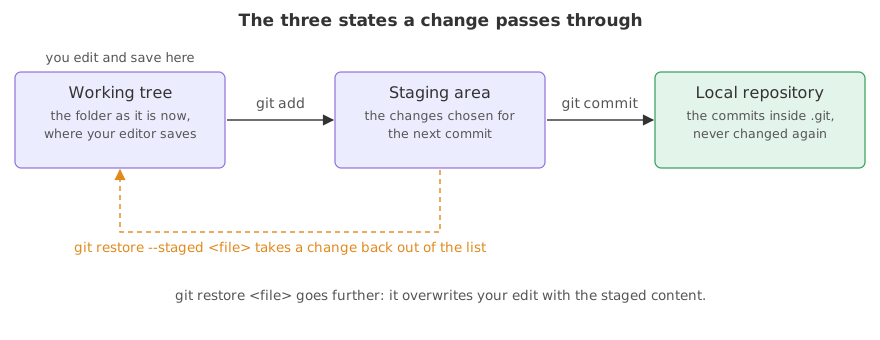
The three states, in words
- The working tree is the folder as it is now. Saving a file in your editor changes the working tree and leaves the other two alone.
- The staging area is a list Git keeps of the changes you have chosen for the next commit. Git's own documentation also calls it the index.
- The local repository is the set of commits inside
.git. A commit is never changed once it is made.
Two commands move work forward. git add copies the current content of a file into the staging area. git commit takes everything in the staging area, writes it into the repository as one commit, and empties the list.
Syntax: name the paths you want staged, then commit with a message.
git add <path>              # one file, a folder, or . for everything below you
git commit -m "<message>" # everything staged becomes one commitView the code here
[user]
	name = Reader
	email = reader@example.com
Status before anything is tracked
Start with one file in a fresh repository. Git has never seen it, so it calls the file untracked: it exists in the working tree and nowhere else.
mkdir ask-docs && cd ask-docs
git init -q -b main
printf 'Support bot\n' > README.md    # create the file
git statusOn branch main No commits yet Untracked files: (use "git add <file>..." to include in what will be committed) README.md nothing added to commit but untracked files present (use "git add" to track)
printf writes a line into a file, which is the same as typing it in an editor and saving. The answer lists README.md under Untracked files and ends with nothing added to commit, because an untracked file is not part of the next commit.
Those first three lines are the throwaway repository for the rest of this page. Every block below starts from them and shows only the command it is teaching.
Staging the file with git add
git add with a path copies that file into the staging area.
git add README.md
git statusOn branch main No commits yet Changes to be committed: (use "git rm --cached <file>..." to unstage) new file: README.md
- Changes to be committed is the staging area printed as a list.
- new file: README.md means the whole file is new to Git, not only its latest lines.
- The hint about git rm --cached is Git telling you how to take it back out. Current Git has a clearer command for that, further down this page.
Making the first commit
git commit -m turns the staged list into a commit. The -m is the message, in quotes; without it Git opens an editor and waits.
Git stores a date with each commit, and reads it from the GIT_AUTHOR_DATE and GIT_COMMITTER_DATE variables when they are set. The examples set them to one fixed moment so every run produces the same commit and the hashes below match what you see. Leave them out in your own work and Git uses the clock.
# the same two dates every run, so the commit hashes below match
export GIT_AUTHOR_DATE="2026-10-12T10:00:00+00:00"
export GIT_COMMITTER_DATE="2026-10-12T10:00:00+00:00"
git commit -m "Add a README for the docs assistant"[main (root-commit) 784477b] Add a README for the docs assistant 1 file changed, 1 insertion(+) create mode 100644 README.md
- [main (root-commit) ...] names the branch, says this is the first commit in the repository, and prints the short hash that identifies it.
- 1 file changed, 1 insertion(+) counts what went in: one file, one line.
- create mode 100644 README.md records that the file is new and is an ordinary non-executable file.
The commit is made, so the three places now hold the same content. Status says so in two lines.
git statusOn branch main nothing to commit, working tree clean
nothing to commit, working tree clean is the status Git reports when the working tree, the staging area and the last commit all hold the same content.
Staging several changes with git add .
A real commit usually touches more than one file. git add . stages everything that changed in the folder you are standing in and below it, new files included.
printf 'Support bot\n\nAnswers questions from your own documents.\n' > README.md   # change it
printf 'chunk_size = 500\n' > loader.py   # and write a new file
git add .
git statusOn branch main Changes to be committed: (use "git restore --staged <file>..." to unstage) modified: README.md new file: loader.py
- modified: README.md is a file Git already tracks, with new content staged.
- new file: loader.py is a file Git had never seen before this
git add .. - The dot in
git add .means this folder and everything below it, so a file in a subfolder is staged too.
The two changes commit together, so the history gets one commit holding both. Keep a commit to one piece of work: a reader later should be able to say what it was for.
The change you staged is the change you commit
git add copies the file as it is at that moment. Edit the file again and the new edit is not staged, so the commit would carry the older content. Git shows the file twice when that happens, and beginners read that as a bug.
printf 'Answers from your own documents.\n' >> README.md   # one change
git add README.md
printf 'Run it with python loader.py\n' >> README.md       # a second change, after staging
git statusOn branch main Changes to be committed: (use "git restore --staged <file>..." to unstage) modified: README.md Changes not staged for commit: (use "git add <file>..." to update what will be committed) (use "git restore <file>..." to discard changes in working directory) modified: README.md
README.md is listed under both headings. Changes to be committed holds the first edit, and Changes not staged for commit holds the second. Committing now would keep the first edit and leave the second out. Running git add README.md again stages the newer content and the file leaves the second list.
Taking a change back out of the staging area
git restore --staged <path> removes a file from the staging area and leaves your edit alone. Older material uses git reset <path> for this, which still works; git restore arrived in Git 2.23 and is the current way.
git restore --staged README.md    # unstage, keep the edit
git statusOn branch main Changes not staged for commit: (use "git add <file>..." to update what will be committed) (use "git restore <file>..." to discard changes in working directory) modified: README.md no changes added to commit (use "git add" and/or "git commit -a")
The file moves from Changes to be committed to Changes not staged for commit. The edit is still in the file; only Git's list changed. git restore README.md without --staged is the dangerous one: it throws the edit away and gives you back the committed content.
Working tree compared with staging area and repository
| Working tree | Staging area | Local repository | |
|---|---|---|---|
| What it holds | the files as you edit them | the changes chosen for the next commit | every commit ever made |
| Where it lives | the project folder | inside .git, as the index | inside .git, as objects |
| Put something in | save in your editor | git add | git commit |
| Take something out | git restore <path> | git restore --staged <path> | nothing, a commit stays |
| Shown by status under | Changes not staged for commit | Changes to be committed | nothing, it is the baseline |
Where the staging area earns its keep
- Two unrelated fixes in one sitting. Stage and commit the first file, then the second, and the history keeps them apart.
- A file you do not want in the commit. A scratch note next to real work stays unstaged and out of the snapshot.
- Reviewing yourself.
git statusbefore every commit is a last look at what you are about to record.
git commit commits the staging area, not your folder. If you forget the git add, Git answers no changes added to commit and makes nothing, and if you staged an older version of the file, that older version is what the commit keeps. Read git status before you commit.Related
- Previous: Your first repository
- Next: Reading git status
- See also: Writing a commit message for what to put after
-m - Reference: Recording changes to the repository in the Git book
- Stage a file, then run
git commitwith no-m. Git opens your editor; type a line, save and close it, and read what Git prints. - Make two files and stage only one with
git add prompt.txt. Commit, then rungit statusand find the other one. - Edit a committed file, run
git restore README.md, and open the file. The edit is gone, which is the point of being careful with that command.
Slow is fine. Stopping is the only problem.