
Pushing and pulling
git push sends your commits to a remote, and git pull brings other people's commits down. They are the only two commands that move work between the copies.
Last updated: 12 Oct, 2026 · git 2.54
GitHub authentication settled how GitHub lets your machine in. With that done, the two commands below are the whole of working with other people.
The video runs git push origin main and the commit appears on the repository page. origin is the remote's name and main is the branch being sent.
Syntax: the four commands this lesson uses.
git push -u origin main    # send branch main to origin, and remember the pairing
git push                   # after -u once, this is enough
git fetch origin           # download what the remote has, change nothing you are working on
git pull                   # git fetch, then merge what came down into your branch
The repository this pushes to is a bare repository in a folder on the same machine, standing in for the GitHub URL so the commands below are real runs. On GitHub the only difference is the URL.
export GIT_AUTHOR_NAME=Reader GIT_AUTHOR_EMAIL=reader@example.com GIT_AUTHOR_DATE=2026-10-12T10:00:00
export GIT_COMMITTER_NAME=Reader GIT_COMMITTER_EMAIL=reader@example.com GIT_COMMITTER_DATE=2026-10-12T10:00:00
git init --bare -q ask-docs.git            # the stand-in for the repository on GitHub
mkdir ask-docs && cd ask-docs && git init -q -b main
printf 'Answer only from the notes.\n' > prompt.txt
git add . && git commit -q -m "Add the prompt"
git remote add origin ../ask-docs.git
git remote -vorigin ../ask-docs.git (fetch) origin ../ask-docs.git (push)
A bare repository holds commits and no working tree, which is what a repository on a server looks like. One commit sits in your copy, and nothing has crossed to the stand-in yet.
Sending a branch for the first time
-u is short for --set-upstream. It does the push and also records that this branch belongs with that branch on that remote. After it, git push and git pull with no arguments know where to go.
git push -u origin main   # the first push of a branch
git push # every push after thatgit push -u origin main
echo "--- what the branch knows now"
git branch -vv
git status -sbTo ../ask-docs.git * [new branch] main -> main branch 'main' set up to track 'origin/main'. --- what the branch knows now * main 0bc2f92 [origin/main] Add the prompt ## main...origin/main
- A new branch was created on the other side.
* [new branch] main -> mainsays the branch did not exist there and now does. - The pairing was saved. The line about tracking is what
-uadded.git branch -vvshows it in brackets as[origin/main]. git status -sbnow has a second half.## main...origin/mainmeans git is comparing your branch against the remote one every time you ask for status.
Bringing down what someone else pushed
When the remote has a commit you do not have and you have nothing new, git pull moves your branch forward on to it. Git calls that a fast-forward: no merge is needed because nothing of yours is in the way.
cd ~ && git clone -q "$HOME/ask-docs.git" teammate && cd teammate     # someone else's copy
printf 'chunk_size = 400\n' > settings.py
git add . && git commit -q -m "Add a settings file" && git push -q
git log --oneline21e04fb Add a settings file 0bc2f92 Add the prompt
That is a third repository in the picture: the stand-in in the middle, your copy, and a copy belonging to somebody else. Their commit is in the stand-in now, and your copy still has one commit.
Pulling their commit into your copy
cd ~/ask-docs                 # back in your own copy
git pull
git log --onelineFrom ../ask-docs 0bc2f92..21e04fb main -> origin/main Updating 0bc2f92..21e04fb Fast-forward settings.py | 1 + 1 file changed, 1 insertion(+) create mode 100644 settings.py 21e04fb Add a settings file 0bc2f92 Add the prompt
- The first lines are the download.
From ../ask-docsand the two hashes with a range between them are git saying which commits arrived. - Fast-forward means no merge commit. Your branch had nothing on top of the old commit, so git moved the branch pointer and stopped.
- The file is now on disk.
settings.pywas written by someone else's commit and the pull put it in your working tree.
The push that gets rejected, and the way out
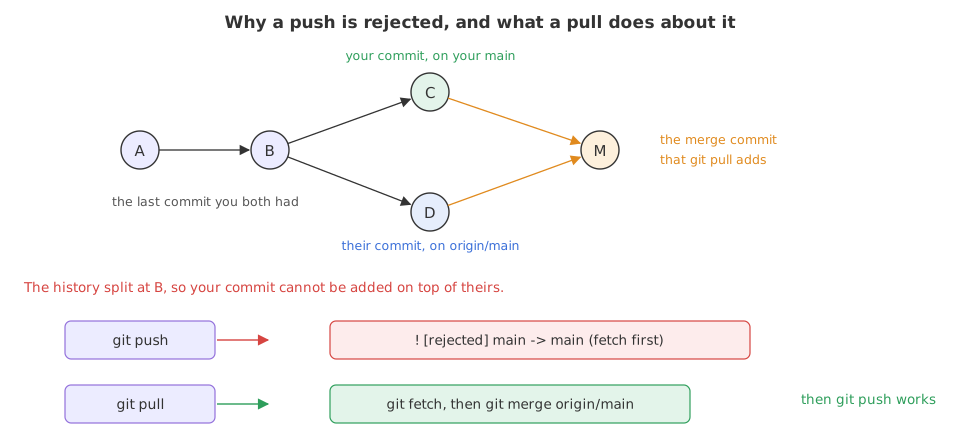
This is the first thing that goes wrong for almost everyone. Both sides committed on top of the same commit, so neither history is the other with more commits on the end. Git refuses the push, because accepting it would drop the other commit.
cd ~/ask-docs                 # back in your own copy
printf 'loader\n' > loader.py && git add . && git commit -q -m "Add the loader"
git push origin mainTo ../ask-docs.git ! [rejected] main -> main (fetch first) error: failed to push some refs to '../ask-docs.git' hint: Updates were rejected because the remote contains work that you do not hint: have locally. This is usually caused by another repository pushing to hint: the same ref. If you want to integrate the remote changes, use hint: 'git pull' before pushing again. hint: See the 'Note about fast-forwards' in 'git push --help' for details.
Read the hint rather than the word error. Git says the remote has work you do not have, names the usual cause, and tells you to pull first. Nothing is broken and nothing is lost: your commit is still here and theirs is still there.
The pull that refuses to guess
git pullFrom ../ask-docs 0bc2f92..21e04fb main -> origin/main hint: You have divergent branches and need to specify how to reconcile them. hint: You can do so by running one of the following commands sometime before hint: your next pull: hint: hint: git config pull.rebase false # merge hint: git config pull.rebase true # rebase hint: git config pull.ff only # fast-forward only hint: hint: You can replace "git config" with "git config --global" to set a default hint: preference for all repositories. You can also pass --rebase, --no-rebase, hint: or --ff-only on the command line to override the configured default per hint: invocation. fatal: Need to specify how to reconcile divergent branches.
Git downloaded the commit, saw that the two branches had split, and stopped with Need to specify how to reconcile divergent branches. It listed the three answers rather than picking one: a merge, a rebase, or a refusal.
Choosing the merge and pulling again
git config pull.rebase false      # join them with a merge commit
git pull
git log --oneline --graphFrom ../ask-docs 0bc2f92..21e04fb main -> origin/main Merge made by the 'ort' strategy. settings.py | 1 + 1 file changed, 1 insertion(+) create mode 100644 settings.py * 26b344c Merge branch 'main' of ../ask-docs |\ | * 21e04fb Add a settings file * | 5784d11 Add the loader |/ * 0bc2f92 Add the prompt
- pull.rebase false picks the merge. The pull then made a merge commit joining your commit and theirs.
--rebasewould have replayed yours on top instead, and--ff-onlywould have refused. - The graph shows the join. The two lines leave the first commit, run side by side and come back together at the merge commit.
Pushing once the histories are joined
git push origin mainTo ../ask-docs.git 21e04fb..26b344c main -> main
The push is accepted now. The remote's commit is an ancestor of what you are sending, so nothing on the other side would be dropped.
git fetch against git pull
git pull is git fetch followed by a merge. Fetching on its own is the careful version: it downloads everything and touches nothing you are working on, so you can look before you join.
cd ~/ask-docs
git fetch origin
git status -sb
ls                                     # the new file is not here yet
git log --oneline origin/main # but the commit can already be readFrom ../ask-docs 0bc2f92..21e04fb main -> origin/main ## main...origin/main [behind 1] prompt.txt 21e04fb Add a settings file 0bc2f92 Add the prompt
- After the fetch, status says behind 1. Git knows about a commit you do not have. Your files are untouched, and
lsshows the one file you had. origin/mainis readable straight away. It is a branch name like any other, kept up to date by fetch, pointing at what the remote had when you last fetched.
Merging what the fetch brought down
git merge origin/main
lsUpdating 0bc2f92..21e04fb Fast-forward settings.py | 1 + 1 file changed, 1 insertion(+) create mode 100644 settings.py prompt.txt settings.py
Only now did settings.py appear in ls. git pull is these two commands in one, which is the whole of the difference between them.
git fetch | git pull | |
|---|---|---|
| Downloads commits | yes | yes |
| Changes your files | no | yes |
| Can cause a conflict | no | yes |
| Leaves you to decide | yes, merge when you are ready | no, it merges at once |
| Use it when | you want to see what arrived first | you are up to date with your own work and want theirs |
Where push and pull belong in a day
- Pull before you start. One pull at the beginning avoids most rejected pushes, because you begin from what everyone else already has.
- Push when a piece works. A commit on your laptop protects you from nothing. A pushed commit survives the laptop.
- Fetch when you are in the middle of something. It tells you what is coming without disturbing the work in front of you.
git push --force makes the rejection go away by replacing the remote branch with yours, which deletes commits other people have. If you must rewrite a pushed branch, use --force-with-lease, which refuses when the remote has moved since you last fetched, and tell the people who share the branch first.Related
- Previous: GitHub authentication
- Next: Cloning a repository
- Reference: git push and git pull in the Git documentation
- Change
git config pull.rebase falsetotruein the divergent example and read the graph again. There is no merge commit: your work sits on top. - Set it to
git config pull.ff onlyinstead and run the pull. Git refuses, which is what you want when you never meant to have your own commits. - Delete the
-ufrom the first push and then rungit pushwith no arguments in the next example.
Every expert started right here.