
Pull requests
A pull request is a proposal on GitHub to merge one branch into another, with a place to discuss it first. It is a GitHub feature, not a git command.
Last updated: 12 Oct, 2026 · git 2.54
Cloning a repository and the lessons before it covered every command that touches a repository. A pull request adds the one thing commands cannot: somebody else looking at the change before it lands.
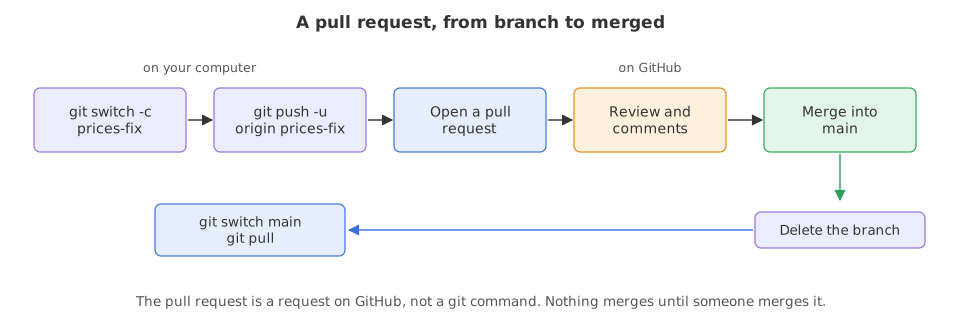
The name is a request to the project to pull your branch in. GitHub's docs put one rule on it: “Pull requests can only be opened between two different branches”. The branch you want merged is the compare branch; the branch it should land in is the base.
Pushing the branch the pull request is about
Everything before the pull request is git, and you have seen all of it. Make a branch, commit on it, push it with -u. The repository this pushes to is a bare repository in a folder on the same machine, standing in for the GitHub URL so the commands below are real runs. On GitHub the only difference is the URL.
export GIT_AUTHOR_NAME=Reader GIT_AUTHOR_EMAIL=reader@example.com GIT_AUTHOR_DATE=2026-10-12T10:00:00
export GIT_COMMITTER_NAME=Reader GIT_COMMITTER_EMAIL=reader@example.com GIT_COMMITTER_DATE=2026-10-12T10:00:00
git init --bare -q ask-docs.git            # the stand-in for the repository on GitHub
mkdir ask-docs && cd ask-docs && git init -q -b main
printf 'Answer only from the notes.\n' > prompt.txt
printf 'chunk_size = 400\n' > settings.py
git add . && git commit -q -m "Add the prompt and the settings"
git remote add origin ../ask-docs.git && git push -u origin mainTo ../ask-docs.git * [new branch] main -> main branch 'main' set up to track 'origin/main'.
That is the starting point: one commit on main, in your copy and in the stand-in. The pull request is going to be about a branch that does not exist yet.
Committing on a branch and pushing it
git switch -c shorter-chunks
printf 'chunk_size = 200\n' > settings.py
git commit -q -am "Try 200 character chunks"
git push -u origin shorter-chunksSwitched to a new branch 'shorter-chunks' To ../ask-docs.git * [new branch] shorter-chunks -> shorter-chunks branch 'shorter-chunks' set up to track 'origin/shorter-chunks'.
- The branch was created on the remote.
* [new branch]again, this time forshorter-chunks. mainhas not changed. The branch sits beside it. Nothing merges until someone decides to merge it.
The two branches the pull request page compares
git branch -rorigin/main origin/shorter-chunks
git branch -r lists the branches the remote has. Both are there, and a pull request is a request to join one to the other.
Opening the pull request
This part needs a real GitHub account, so it is not run here. GitHub documents the web steps: open the repository, use the Branch menu to pick the branch with your commits, click the Compare & pull request banner above the file list, set the base dropdown to the branch you want to merge into and the compare dropdown to your branch, write a title and a description, and click Create Pull Request. For work that is not ready, the dropdown beside it offers Create Draft Pull Request.
The GitHub CLI does the same from the terminal.
gh pr create --base main --head shorter-chunks \
  --title "Try 200 character chunks" \
  --body "Smaller chunks, same prompt. Opening for review."

gh pr create --fill     # take the title and body from the commit
gh pr create --web      # fill it in on the website instead
--base is the branch the code should end up in and --head is the branch holding the commits, which defaults to the branch you are on. --fill takes the title and body from the commit, and --draft opens it as a draft.
Choosing how the merge happens
GitHub offers three merge buttons, and each leaves a different history behind. All three have a git command that does the same thing, so you can see the difference before you press anything.
setup() {                                   # a main with one commit, and a two-commit branch
  mkdir "$1" && cd "$1" && git init -q -b main
  printf 'chunk_size = 400\n' > settings.py
  git add . && git commit -q -m "Add the settings"
  git switch -q -c shorter-chunks
  printf 'chunk_size = 300\n' > settings.py && git commit -q -am "Try 300"
  printf 'chunk_size = 200\n' > settings.py && git commit -q -am "Try 200"
  git switch -q main
  printf 'Answer only from the notes.\n' > prompt.txt
  git add . && git commit -q -m "Add the prompt"
}
The function makes a fresh folder with the same history every time it is called: a main with one commit of its own, and a branch with two. Each block below calls it for its own folder, so the three merges can be compared on identical input.
cd ~ && setup merge-commit
git log --oneline --all --graph* 2f1297b Add the prompt | * b70d322 Try 200 | * af33707 Try 300 |/ * bf0860d Add the settings
Two commits on the branch, one of your own on main after the split. The three blocks below each end that picture differently.
Merge pull request
cd ~ && setup merge-commit
git merge --no-ff shorter-chunks -m "Merge pull request #1 from shorter-chunks"
git log --oneline --graphMerge made by the 'ort' strategy. settings.py | 2 +- 1 file changed, 1 insertion(+), 1 deletion(-) * b3d2643 Merge pull request #1 from shorter-chunks |\ | * b70d322 Try 200 | * af33707 Try 300 * | 2f1297b Add the prompt |/ * bf0860d Add the settings
Squash and merge
cd ~ && setup squashed
git merge --squash shorter-chunks
git commit -q -m "Try 200 character chunks (#1)"
git log --oneline --graphAutomatic merge went well; stopped before committing as requested Squash commit -- not updating HEAD * 133bf89 Try 200 character chunks (#1) * 2f1297b Add the prompt * bf0860d Add the settings
Rebase and merge
cd ~ && setup rebased
git switch -q shorter-chunks && git rebase main
git switch -q main && git merge --ff-only shorter-chunks
git log --oneline --graphRebasing (1/2) Rebasing (2/2) Successfully rebased and updated refs/heads/shorter-chunks. Updating 2f1297b..e066943 Fast-forward settings.py | 2 +- 1 file changed, 1 insertion(+), 1 deletion(-) * e066943 Try 200 * 4cd7e6f Try 300 * 2f1297b Add the prompt * bf0860d Add the settings
- Merge commit keeps everything. GitHub's docs say it “preserves the full commit history from the pull request branch”. Both attempts are in the history and the graph forks and rejoins.
- Squash leaves one commit. The docs describe it as combining “all commits in the pull request into a single commit on the base branch”. The two attempts are gone, and the line is straight.
- Rebase leaves both commits, in a straight line. The docs call it adding “each commit onto the base branch without a merge commit, for a linear history”. The hashes are new ones, because a commit with a different parent is a different commit.
| Merge commit | Squash and merge | Rebase and merge | |
|---|---|---|---|
| Commits added to main | all of them, plus a merge commit | one | all of them, rewritten |
| History shape | forks and rejoins | straight | straight |
| Can you still read the steps? | yes | no, only the summary | yes |
| Good for | a branch whose steps matter | a branch full of small fixes | a tidy history with no merge noise |
Finishing up after the merge
Once the pull request is merged, the work is on the base branch on GitHub and not on your machine. A pull brings it down, and the branch that carried it can then go.
cd ~ && git clone -q "$HOME/ask-docs.git" merge-button && cd merge-button
git merge -q --no-ff origin/shorter-chunks -m "Merge pull request #1 from shorter-chunks"
git push origin main # stands in for someone pressing Merge pull requestTo ~/ask-docs.git 4abe39a..cc998fa main -> main
The work is on main in the stand-in now. Your own copy knows nothing about it, which is the state you are in every time somebody merges your pull request.
Bringing the merge down to your copy
cd ~/ask-docs
git switch main
git pullSwitched to branch 'main' Your branch is up to date with 'origin/main'. From ../ask-docs 4abe39a..cc998fa main -> origin/main Updating 4abe39a..cc998fa Fast-forward settings.py | 2 +- 1 file changed, 1 insertion(+), 1 deletion(-)
Switching said up to date, and it was wrong. Your copy had not heard about the merge yet, so it compared against what it last knew. The git pull on the next line is what told it, and the merge arrived as a fast-forward.
Clearing the branch away
git branch -d shorter-chunks
git push origin --delete shorter-chunks
git branch -aDeleted branch shorter-chunks (was 8da92ab). To ../ask-docs.git - [deleted] shorter-chunks * main remotes/origin/HEAD -> origin/main remotes/origin/main
git branch -dis the safe delete. It refuses if the branch holds commits that are not merged anywhere.-Ddeletes it anyway, which is what you want for an experiment you are throwing out.- Deleting it locally leaves it on the remote.
git push origin --delete <branch>removes it there, which is what GitHub's delete button does. - Nothing is lost by deleting a merged branch. The commits are in
main. A branch name is a label, not the work.
Where a pull request earns its keep
- Any change to a repository other people depend on. A second reader catches the key left in a file and the comment that no longer matches the code.
- A change you want a record of. The description, the discussion and the commits stay attached to the merge for ever.
- Your own solo project. Opening one on yourself gives you the whole change on one page before you merge it, which reads differently from the editor.
Related
- Previous: Cloning a repository
- Next: Forks
- Reference: Creating a pull request and About pull request merges in the GitHub docs
- In the merge example, swap
--no-fffor a plaingit mergeand read the graph. Git fast-forwards when it can, and the branch disappears from the picture. - Change the squash example's commit message to list both attempts, then run
git show --stat HEADto see what one commit now contains. - After the rebase example, run
git log --onelineon both branches. The hashes match, because--ff-onlymoved the label rather than copying anything.
You understood something today that you didn't yesterday.