
Forks
A fork is your own copy of someone else's repository on GitHub, which you can push to, and from which you can offer your work back to the original.
Last updated: 12 Oct, 2026 · git 2.54
Pull requests assumed you could push a branch to the repository. For almost every open project you cannot: you have no write access. A fork is the way in.
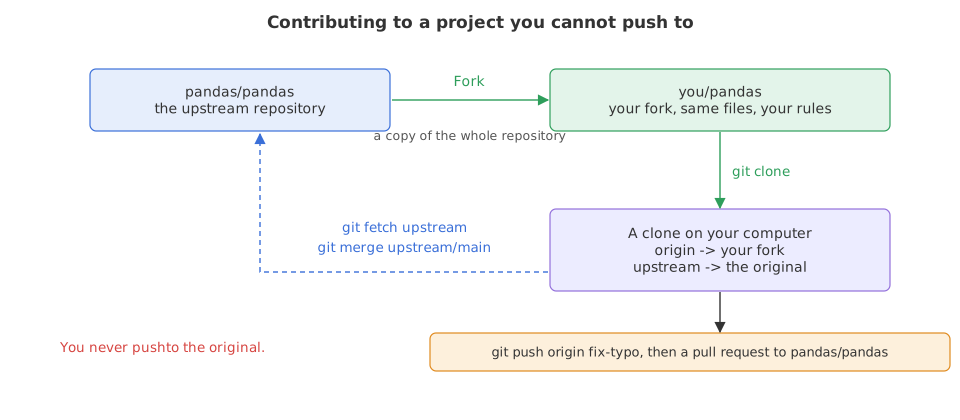
GitHub defines it in one line: “Forks are repositories that start as copies of another repository, called the upstream repository”, and “a fork has its own settings and permissions but stays connected to the upstream repository” (About forks). Forking is a button on the repository page, or one command in the GitHub CLI.
gh repo fork pandas-dev/pandas --cloneWith no argument it forks the repository you are in. --clone also copies the fork to your machine. The CLI then does something worth knowing about: the fork becomes your origin remote, and any existing origin is renamed to upstream.
Giving a clone two remotes
A clone of your fork has one remote, origin, pointing at your copy. The original gets a second name so you can pull its new work later. GitHub's docs use upstream for that name. The repository this pushes to is a bare repository in a folder on the same machine, standing in for the GitHub URL so the commands below are real runs. On GitHub the only difference is the URL.
Syntax: the two remotes a fork needs, as GitHub's docs write them.
git clone https://github.com/you/pandas.git        # your fork becomes origin
cd pandas
git remote add upstream https://github.com/pandas-dev/pandas.git
git remote -v # two names, two URLsexport GIT_AUTHOR_NAME=Reader GIT_AUTHOR_EMAIL=reader@example.com GIT_AUTHOR_DATE=2026-10-12T10:00:00
export GIT_COMMITTER_NAME=Reader GIT_COMMITTER_EMAIL=reader@example.com GIT_COMMITTER_DATE=2026-10-12T10:00:00
mkdir work && cd work
git init --bare -q upstream.git # the original project
mkdir seed && cd seed && git init -q -b main # its maintainer fills it in
printf 'Answer only from the notes.\n' > prompt.txt
git add . && git commit -q -m "Add the prompt"
git remote add up ../upstream.git && git push up main && cd ..To ../upstream.git * [new branch] main -> main
That is somebody else's repository: a bare one standing in for the GitHub URL, with one commit pushed into it by its maintainer. You have no write access to it, which is the whole reason for what follows.
Making the copy that is yours
git clone -q --bare upstream.git fork.git         # stands in for pressing Fork
git -C fork.git log --oneline0bc2f92 Add the prompt
Pressing Fork on GitHub makes a copy of the repository under your own account. The copy starts with the same commit, and it is yours to push to.
Cloning your fork and naming the original
cd ~ && git clone -q "$HOME/work/fork.git" ask-docs && cd ask-docs
git remote add upstream "$HOME/work/upstream.git"
git remote -vorigin ~/work/fork.git (fetch) origin ~/work/fork.git (push) upstream ~/work/upstream.git (fetch) upstream ~/work/upstream.git (push)
originis your fork. It is the one you can push to, because it is your repository.upstreamis the original. You fetch from it. Pushing to it is what you do not have permission to do, and the name is a reminder.- The names are a convention, not a rule. Git treats both the same way. Everyone uses these two words, so everyone's instructions fit your repository.
Offering the change back
The work itself is ordinary: a branch, a commit, a push to your fork. The pull request is then opened from your branch on your fork against the original's branch.
git switch -c fix-typo
printf 'Answer only from the notes.\nSay you do not know when they do not cover it.\n' > prompt.txt
git commit -q -am "Say what to do when the notes do not cover the question"
git push -u origin fix-typo
git branch -rSwitched to a new branch 'fix-typo' To ~/work/fork.git * [new branch] fix-typo -> fix-typo branch 'fix-typo' set up to track 'origin/fix-typo'. origin/HEAD -> origin/main origin/fix-typo origin/main
The branch is now on your fork and on nobody else's. Opening the pull request is the same web flow as before, with one difference: the base is the original repository's branch and the compare is your fork's branch. In the CLI the compare side is written <user>:<branch>.
gh pr create --base main --head you:fix-typo \
  --title "Say what to do when the notes do not cover the question" \
  --body "One line added to prompt.txt."
Keeping a fork up to date
A fork does not follow the original. Weeks later the original has moved and your copy has not. GitHub's docs give three commands for catching up, and the three blocks below are a real run of them.
cd ~/work/seed && printf 'MIT\n' > LICENSE        # the original moves on without you
git add . && git commit -q -m "Add a licence" && git push -q up main
cd ~/ask-docs
git fetch upstreamFrom ~/work/upstream * [new branch] main -> upstream/main
The fetch brought the branch down under upstream/main. Nothing in your files changed yet, and your own main is where it was.
Merging the original's work into your branch
git switch main
git merge upstream/main
git log --onelineAlready on 'main' Your branch is up to date with 'origin/main'. Updating 0bc2f92..885afda Fast-forward LICENSE | 1 + 1 file changed, 1 insertion(+) create mode 100644 LICENSE 885afda Add a licence 0bc2f92 Add the prompt
- The merge was a fast-forward. You had made no commits of your own on
main, so git moved the branch on to theirs. - GitHub's docs use
git checkout mainhere.git switch maindoes the same thing and is the newer command; both work.
Pushing the catch-up to your fork
git push -q origin main           # your fork on GitHub now has it too
git -C "$HOME/work/fork.git" log --oneline885afda Add a licence 0bc2f92 Add the prompt
The push is a separate step. The docs are explicit that syncing updates your local copy, and that you have to push to update the fork on GitHub, which the two commits in the fork now show.
Fork against clone
| Fork | Clone | |
|---|---|---|
| Where the copy lives | on GitHub, under your account | on your machine |
| Can you push to it | yes | yes, to the clone; the remote is another question |
| Made by | the Fork button or gh repo fork | git clone <URL> |
| Connected to the original | yes, GitHub keeps the link | only by the remote you set |
| You need it when | you cannot push to the original | you want the project on your machine |
Where forks are the normal way to work
- Contributing to open source. Fork, branch, push, pull request. It is the standard route and maintainers expect it.
- Building on a project without owning it. Your fork is yours to change, and the link back lets you take their fixes when you want them.
- Trying something large. A fork is a safe place to be wrong in public.
main drifts away from the original, and a pull request made from a stale branch fills up with conflicts. Fetch from upstream and merge before you start each change, not after you finish it.Related
- Previous: Pull requests
- Next: Undoing changes before a commit
- Reference: Syncing a fork in the GitHub docs
- Fork a small project you use, clone your fork, and run
git remote -v. Onlyoriginis there until you addupstream. - Add
upstream, rungit fetch upstream, thengit log --oneline main..upstream/mainto list what the original has that you do not. - Make a branch for a one-line change in a project's README and push it to your fork. You need not open the pull request to see the branch appear.
Slow is fine. Stopping is the only problem.