
Undoing changes before a commit
git restore throws away a change you have not committed, either the edit in the file or the fact that you staged it.
Last updated: 12 Oct, 2026 · git 2.54
Forks finished everything about sharing work. This part is about taking work back, and it starts with the cheapest case: the change is not committed yet, so undoing it touches no history at all.
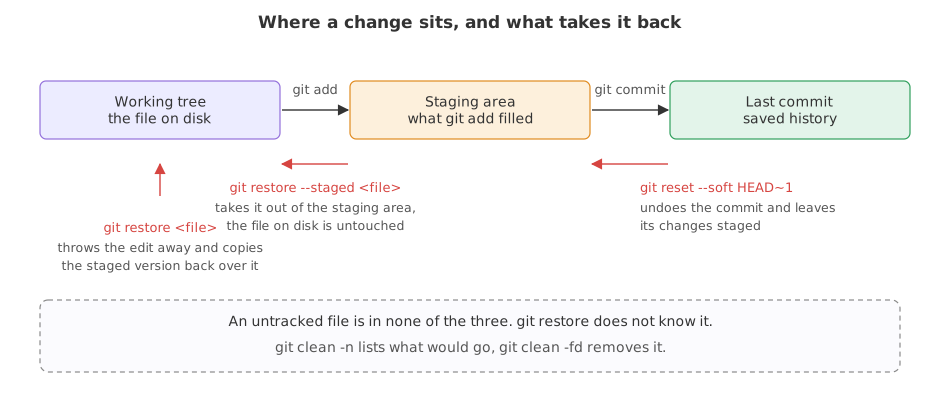
The command you need depends only on how far the change has travelled. Deciding that first makes the rest obvious: a change you have edited but not staged, a change you have staged but not committed, and a file git has never seen are three different situations with three different answers.
Syntax: the three forms of git restore, and the one for untracked files.
git restore settings.py              # throw away the edit, take the staged version back
git restore --staged settings.py     # unstage it, keep the edit on disk
git restore --staged --worktree settings.py   # both: back to the last commit
git clean -n                         # list the untracked files that -f would delete
Setting up a repository to practise in
The examples below all work in one throwaway repository: a folder with a single file, committed once. The two export lines stand in for the name and email you set once with git config --global, and fix the date so the commit hashes are the same on every run.
export GIT_AUTHOR_NAME=Reader GIT_AUTHOR_EMAIL=reader@example.com GIT_AUTHOR_DATE=2026-10-12T10:00:00
export GIT_COMMITTER_NAME=Reader GIT_COMMITTER_EMAIL=reader@example.com GIT_COMMITTER_DATE=2026-10-12T10:00:00
mkdir ask-docs && cd ask-docs && git init -q -b main
printf 'chunk_size = 400\n' > settings.py
git add . && git commit -q -m "Add the settings"
git log --onelinebf0860d Add the settings
Throwing away an edit you have not staged
git restore <file> copies the staged version of the file over the one on disk. Nothing was staged here, so the staged version is the one in the last commit, and the edit is gone.
printf 'chunk_size = 999999\n' > settings.py
git status --shortM settings.py
git status --short uses two columns. The left one is the staging area and the right one is the file on disk. M with a leading space means the file on disk differs and nothing is staged.
git restore settings.py
cat settings.py
git status --short
echo "(git status printed nothing, which is what a clean working tree looks like)"chunk_size = 400 (git status printed nothing, which is what a clean working tree looks like)
- The file came back exactly.
catshows the committed line again. - The last status printed nothing. An empty answer from
git status --shortmeans there is nothing to report.
Unstaging without losing the edit
After git add, the change exists in two places: on disk and in the staging area. --staged takes it out of the staging area and leaves the file alone, which is what you want when you staged the right change at the wrong moment.
printf 'chunk_size = 200\n' > settings.py
git add settings.py
git status --shortM settings.py
The left column is the staging area, and it holds the change. The right column is blank because the file on disk and the staging area agree.
git restore --staged settings.py
git status --short
cat settings.pyM settings.py chunk_size = 200
MbecameM. The mark moved from the left column to the right one: staged, then not staged.- The file still says 200.
--stagednever touches the working tree, which is exactly the difference between the two commands. - Nothing was lost. You can stage it again with
git addwhenever you are ready.
Undoing both at once
Passing both --staged and --worktree puts the file back to the last commit in one command. --source=HEAD says which version to take: HEAD is the commit you are on.
printf 'chunk_size = 200\n' > settings.py && git add settings.py
printf 'chunk_size = 50\n' > settings.py          # staged 200, on disk 50
git status --shortMM settings.py
MM is a mark in both columns: the staging area holds 200 and the file on disk holds 50.
git restore --source=HEAD --staged --worktree settings.py
git status --short
echo "(git status printed nothing)"
cat settings.py(git status printed nothing) chunk_size = 400
There is no status line left and the file holds the committed value. Both edits are gone, and neither was ever in a commit, so there is nothing anywhere to get them back from.
Removing a file git has never seen
A file you have created but never added is untracked. Git is not keeping any version of it, so git restore has nothing to restore from and says so.
printf 'OPENAI_API_KEY=your-key-here\n' > .env       # created, never added
mkdir -p data && printf 'id,text\n1,hello\n' > data/notes.csv
git status --short?? .env ?? data/
?? in the left of the status marks an untracked path, and data/ is listed as a folder because everything in it is untracked.
git restore .enverror: pathspec '.env' did not match any file(s) known to git
The error is the useful part: pathspec '.env' did not match any file(s) known to git. Git is not refusing; it has never heard of the file.
git clean is the command for these. Run it with -n first, which lists what would go without deleting anything. -f is required to make it act, and -d includes folders.
git clean -n -dWould remove .env Would remove data/
Both paths are named and both are still on disk. -n reports and stops.
git clean -f -d
ls -A
git status --short
echo "(clean)"Removing .env Removing data/ .git settings.py (clean)
-f is what makes it act and -d is what lets it take the folder. What is left is the repository and the one tracked file.
git restore and git clean delete work that was never committed, and git keeps no copy of it. There is no reflog, no stash and no undo for either. When you are not sure, commit the mess on a branch first, or stash it, and throw it away later when you are.The older spellings you will meet
git restore arrived in Git 2.23. Before it, both jobs were done by commands that also did other things, and most tutorials written before 2020 use those. They still work and do the same thing here.
printf 'chunk_size = 200\n' > settings.py
git checkout -- settings.py          # the old way to write: git restore settings.py
cat settings.pychunk_size = 400
git checkout with -- before the file name means the file, not a branch of that name, which is the sort of thing git restore was invented to remove.
printf 'chunk_size = 200\n' > settings.py && git add settings.py
git reset HEAD settings.py           # the old way to write: git restore --staged settings.py
git status --shortUnstaged changes after reset: M settings.py M settings.py
The staged change became an unstaged one, which is what git restore --staged did earlier, and git prints a line about unstaged changes to say so.
| What you want | Current command | What you will see in older material |
|---|---|---|
| Throw away an edit on disk | git restore <file> | git checkout -- <file> |
| Unstage, keep the edit | git restore --staged <file> | git reset HEAD <file> |
| Both at once | git restore --staged --worktree <file> | git checkout HEAD -- <file> |
| Delete untracked files | git clean -fd | the same |
Where these come up
- An edit made in the wrong file. You changed
settings.pywhile meaning to change the copy undernotebooks/. One restore and it never happened. - A stray
git add .. It swept up a file you did not want in this commit.git restore --stagedon that one file leaves the rest staged. - A folder full of generated output. Caches, checkpoints and sample files that were never tracked go in one
git clean -fd, after you have readgit clean -nd.
Related
- Previous: Forks
- Next: Amending, reverting and resetting a commit
- Reference: git restore and git clean in the Git documentation
- Stage one file and edit a second one, then run
git status --shortand name which column each mark is in before you read the answer. - Run
git restore .with a dot instead of a file name. It undoes every unstaged edit in the folder, which is why the dot deserves a pause. - Create a file, run
git clean -n, then add the file and rungit clean -nagain. Tracked files are never listed.
This is what real progress feels like.