
Stashing work in progress
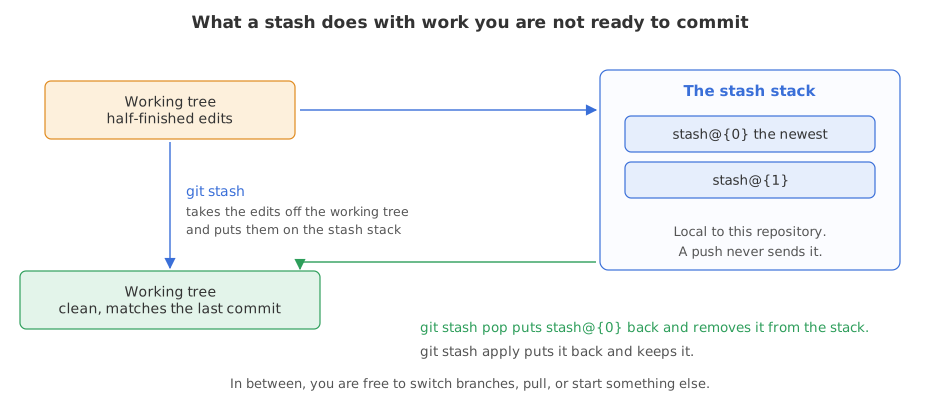
git stash takes the changes in your working tree off to one side and gives you a clean working tree back, so you can do something else and bring them back after.
Last updated: 12 Oct, 2026 · git 2.54
Amending, reverting and resetting a commit was about undoing work for good. A stash is the opposite: the work is fine, the moment is wrong.
Syntax: the whole of git stash in six lines.
git stash                      # put the changes aside, clean the working tree
git stash push -m "a name"     # the same, with a label you will recognise
git stash list                 # what is on the stack
git stash show -p stash@{0}    # the changes in one entry, as a diff
git stash pop                  # put the newest back and remove it from the stack
git stash apply                # put it back and keep it on the stack
Setting up a repository to work in
The examples below all work in one throwaway repository: a folder with a single file, committed once. The two export lines stand in for the name and email you set once with git config --global, and fix the date so the commit hashes are the same on every run.
export GIT_AUTHOR_NAME=Reader GIT_AUTHOR_EMAIL=reader@example.com GIT_AUTHOR_DATE=2026-10-12T10:00:00
export GIT_COMMITTER_NAME=Reader GIT_COMMITTER_EMAIL=reader@example.com GIT_COMMITTER_DATE=2026-10-12T10:00:00
mkdir ask-docs && cd ask-docs && git init -q -b main
printf 'chunk_size = 400\n' > settings.py
git add . && git commit -q -m "Add the settings"
git log --onelinebf0860d Add the settings
The problem a stash solves
Git will not switch branches when switching would overwrite a change you have not committed. This is the error that sends people looking for git stash, so here it is first. It needs a second branch with a commit of its own.
git switch -q -c experiment
printf 'chunk_size = 200\n' > settings.py
git commit -q -am "Try 200 character chunks"
git switch -q main
git branchexperiment * main
experiment has its own commit changing the same file, and the star says you are back on main. Now start an edit on main and try to leave.
printf 'chunk_size = 400   # trying 600 next\n' > settings.py
git switch experimenterror: Your local changes to the following files would be overwritten by checkout: settings.py Please commit your changes or stash them before you switch branches. Aborting
Git names the file it would have overwritten and tells you the two ways out: commit the change, or stash it. Committing half an idea on the wrong branch is how histories become hard to read, so for a change you want to keep but not record, the stash is the answer.
Putting the work aside and taking it back
git stash saves the change, resets the working tree to the last commit and pushes an entry on to a stack.
git stash
git status --short
echo "(clean, so the switch works now)"Saved working directory and index state WIP on main: bf0860d Add the settings (clean, so the switch works now)
The message names the commit you were on, WIP on main followed by the last commit, which is how you tell two stashes apart when there is no label. The working tree is clean, so git has nothing to overwrite.
git switch experiment
git switch main
git stash listSwitched to branch 'experiment'
Switched to branch 'main'
stash@{0}: WIP on main: bf0860d Add the settingsThis is what the stash was for: the branch was visited and the work is still there, on the stack, named stash@{0}.
git stash pop
cat settings.py
git stash list
echo "(the stack is empty again)"On branch main
Changes not staged for commit:
(use "git add <file>..." to update what will be committed)
(use "git restore <file>..." to discard changes in working directory)
modified: settings.py
no changes added to commit (use "git add" and/or "git commit -a")
Dropped refs/stash@{0} (78884faefb85022e468e751d80cac826c7a81e0f)
chunk_size = 400 # trying 600 next
(the stack is empty again)- The edit is in the file again.
catshows the half-finished line, comment and all. popempties the stack. Git says it dropped the entry, andgit stash listprints nothing.git stash applyis the other half of the pair. It writes the change back and leaves the entry in place, which is what you want if you plan to put the same change on two branches.
Labelling and reading a stash
A stack of entries all called WIP on main is useless a day later. git stash push -m gives one a name.
printf 'chunk_size = 200\n' > settings.py
git stash push -m "trying smaller chunks"
printf 'Answer only from the notes.\n' > prompt.txt
git add prompt.txt && git stash push -m "a first draft of the prompt"
git stash listSaved working directory and index state On main: trying smaller chunks
Saved working directory and index state On main: a first draft of the prompt
stash@{0}: On main: a first draft of the prompt
stash@{1}: On main: trying smaller chunksThe newest entry is stash@{0}, so every new stash pushes the others down and the numbers of old entries change as you add more. The second stash took prompt.txt even though it was staged: a stash saves the staging area too.
git stash show -p stash@{0}diff --git a/prompt.txt b/prompt.txt new file mode 100644 index 0000000..3f910df --- /dev/null +++ b/prompt.txt @@ -0,0 +1 @@ +Answer only from the notes.
show -p prints a diff. Here the entry holds a new file, so every line is a + line, and nothing was written to the working tree.
Untracked files, which a plain stash leaves behind
A stash saves tracked files. A file git has never seen is not in it, so a stash can leave your working tree looking dirty.
printf 'chunk_size = 200\n' > settings.py
printf 'print("scratch")\n' > scratch.py        # new file, never added
git stash
git status --shortSaved working directory and index state WIP on main: bf0860d Add the settings ?? scratch.py
The stash took the edit to settings.py and left scratch.py, which git is not tracking, where it was.
git stash -u
git status --short
echo "(clean now)"
git stash listSaved working directory and index state WIP on main: bf0860d Add the settings
(clean now)
stash@{0}: WIP on main: bf0860d Add the settings
stash@{1}: WIP on main: bf0860d Add the settingsThe working tree is clean and the stack has two entries: the first stash and the one that took scratch.py. Files that are ignored by .gitignore are left alone by both; -a takes those as well, which is rarely what you want, since it sweeps up your virtual environment.
When a pop runs into a conflict
A stash is applied to whatever the working tree looks like now, which may not be what it looked like when you stashed. If the same lines have changed in between, the pop conflicts, exactly like a merge.
printf 'chunk_size = 200\n' > settings.py
git stash push -m "trying smaller chunks"
printf 'chunk_size = 800\n' > settings.py
git commit -q -am "Raise the chunk size to 800"
git log --onelineSaved working directory and index state On main: trying smaller chunks 89d0f1a Raise the chunk size to 800 bf0860d Add the settings
The stash holds 200. The committed file now says 800, and both changed the same line.
git stash popAuto-merging settings.py CONFLICT (content): Merge conflict in settings.py On branch main Unmerged paths: (use "git restore --staged <file>..." to unstage) (use "git add <file>..." to mark resolution) both modified: settings.py no changes added to commit (use "git add" and/or "git commit -a") The stash entry is kept in case you need it again.
Git reports the conflict and says it kept the stash entry in case you need it again. The last line is the one that matters: a failed pop cannot lose the work.
cat settings.py
git stash list<<<<<<< Updated upstream
chunk_size = 800
=======
chunk_size = 200
>>>>>>> Stashed changes
stash@{0}: On main: trying smaller chunks- The conflict is marked in the file.
<<<<<<< Updated upstreamis the committed line and>>>>>>> Stashed changesis the line from the stash. You edit the file to what you want and remove the markers. - The entry was not dropped.
git stash liststill shows it, so you can try again or look at it. - Remove it yourself when you are done.
git stash droptakes the newest entry off the stack once you have finished with it.
Stash against a commit on a branch
git stash | A commit on a throwaway branch | |
|---|---|---|
| Where the work lives | a stack in this repository | a real commit |
| Can you push it? | no, a stash never leaves the machine | yes |
| Does it have a message? | only if you use -m | always |
| Survives a fresh clone? | no | yes, once pushed |
| Good for | minutes or hours | days, or anything you would be sad to lose |
Where a stash fits a working day
- A bug report arrives mid-change. Stash, switch, fix, switch back, pop.
- A pull you need before you are ready to commit. Stash,
git pull, pop, and deal with any conflict in the file rather than in the history. - Seeing what a file looks like without your change. Stash it, run the project, then pop.
git stash list, and a stash is not pushed, so a lost machine takes it with it. Anything you would mind losing belongs in a commit on a branch, not on the stack.Related
- Previous: Amending, reverting and resetting a commit
- Next: Project repository structure
- Reference: git stash in the Git documentation
- Make two stashes, then run
git stash apply stash@{1}andgit stash list. The entry is still there, which is the difference frompop. - Run
git stash show -pwith no argument. It shows the newest entry. - Stash a change, then run
git log --oneline --all. The stash does not appear as a branch, which is why it is easy to lose track of.
Little by little, you're building something great.